


Want to experience it in action? You can go to our physical dealer store
Savage Raven 霧鴉(Skull & Co.)
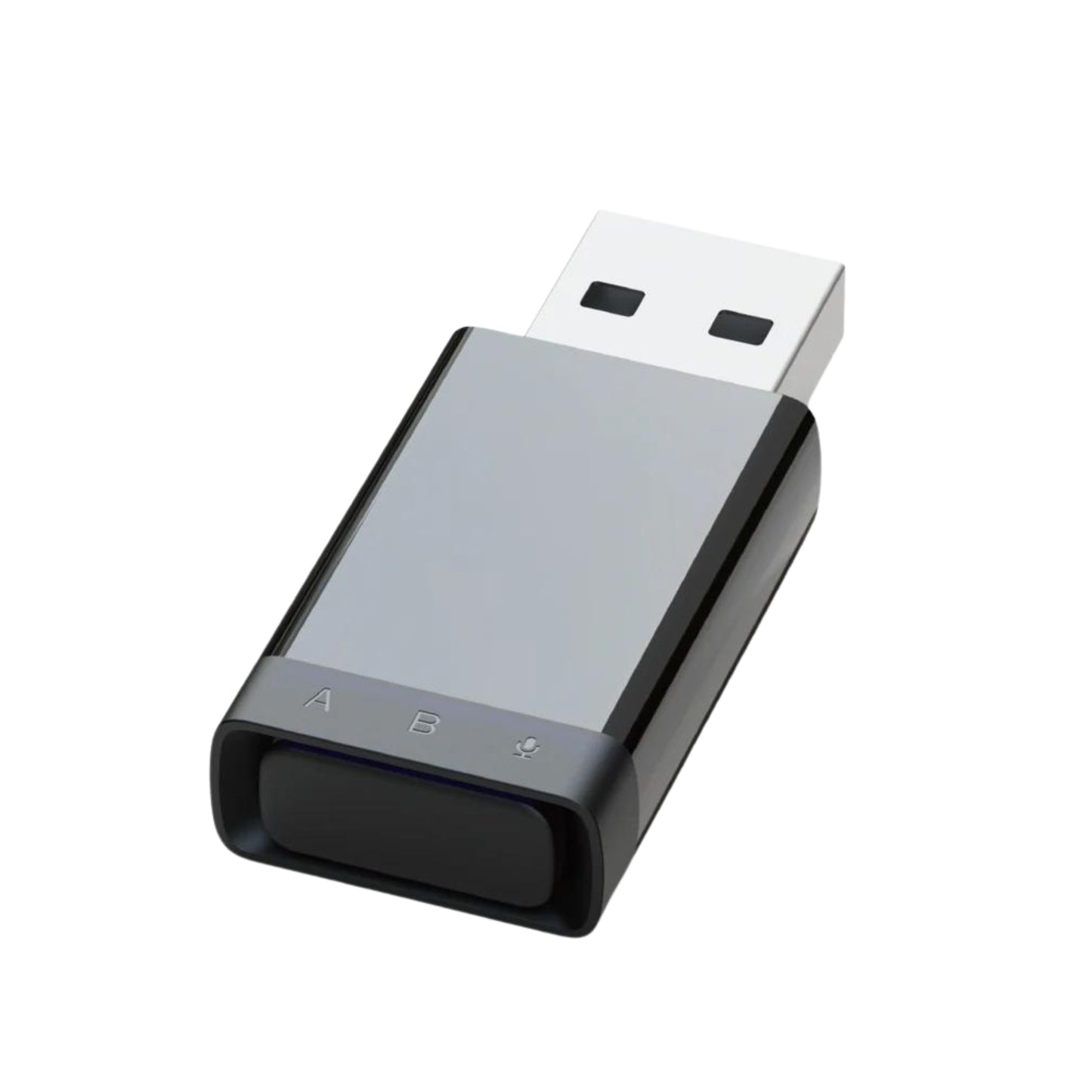
Bluetooth audio receiver and transmitter AudioDrive is suitable for PS5/PS4/Switch/NS2/PC and other devices
Bluetooth audio receiver and transmitter AudioDrive is suitable for PS5/PS4/Switch/NS2/PC and other devices
Couldn't load pickup availability


All products pass the EU RoHS non-toxic environmental standards
product description
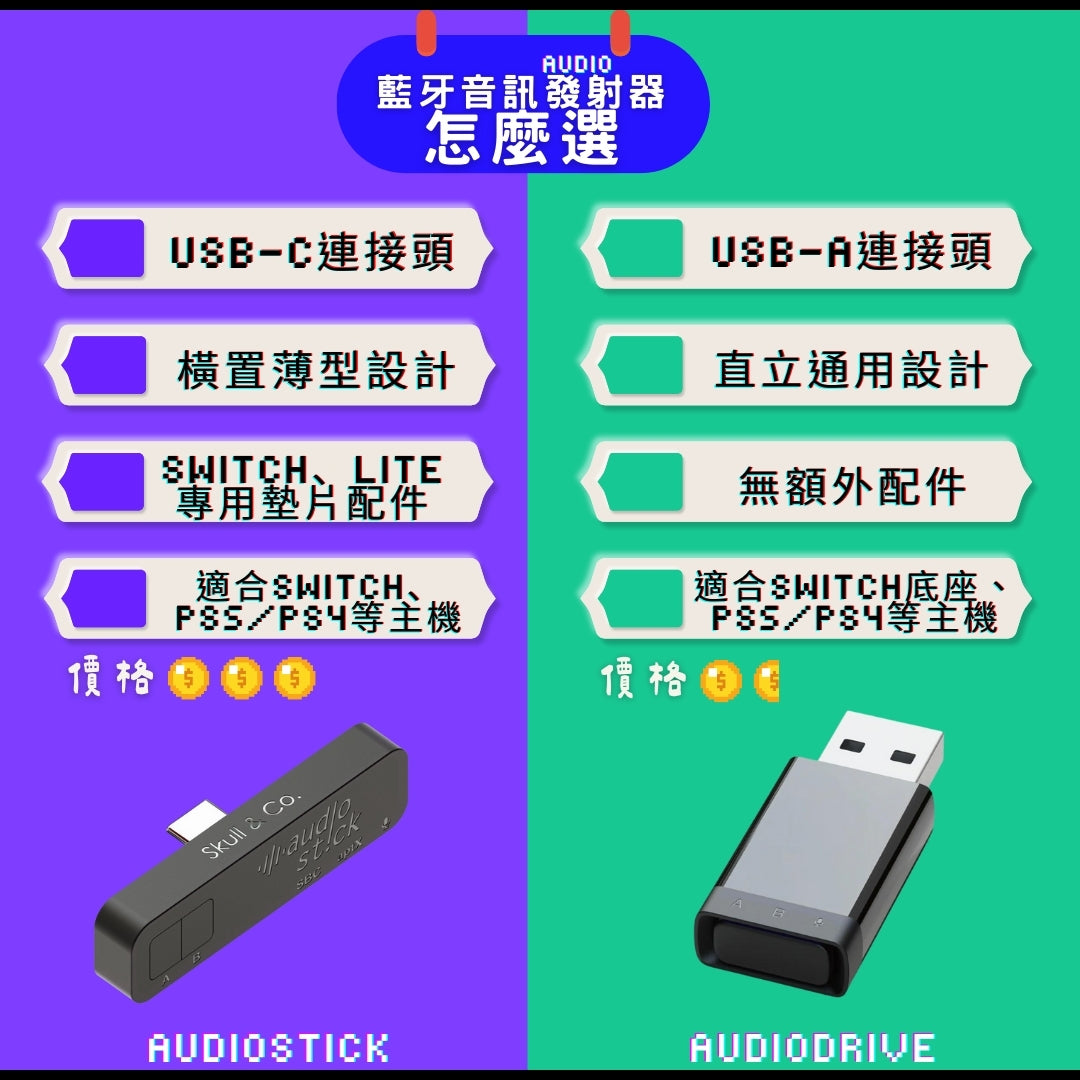
⚠️ This product is the USB-A connector version. If the connected device has a USB-C (Type-C) port, you can choose AudioStick or purchase a "USB-A (Female) to USB-C (Male)" adapter separately.
Product Features
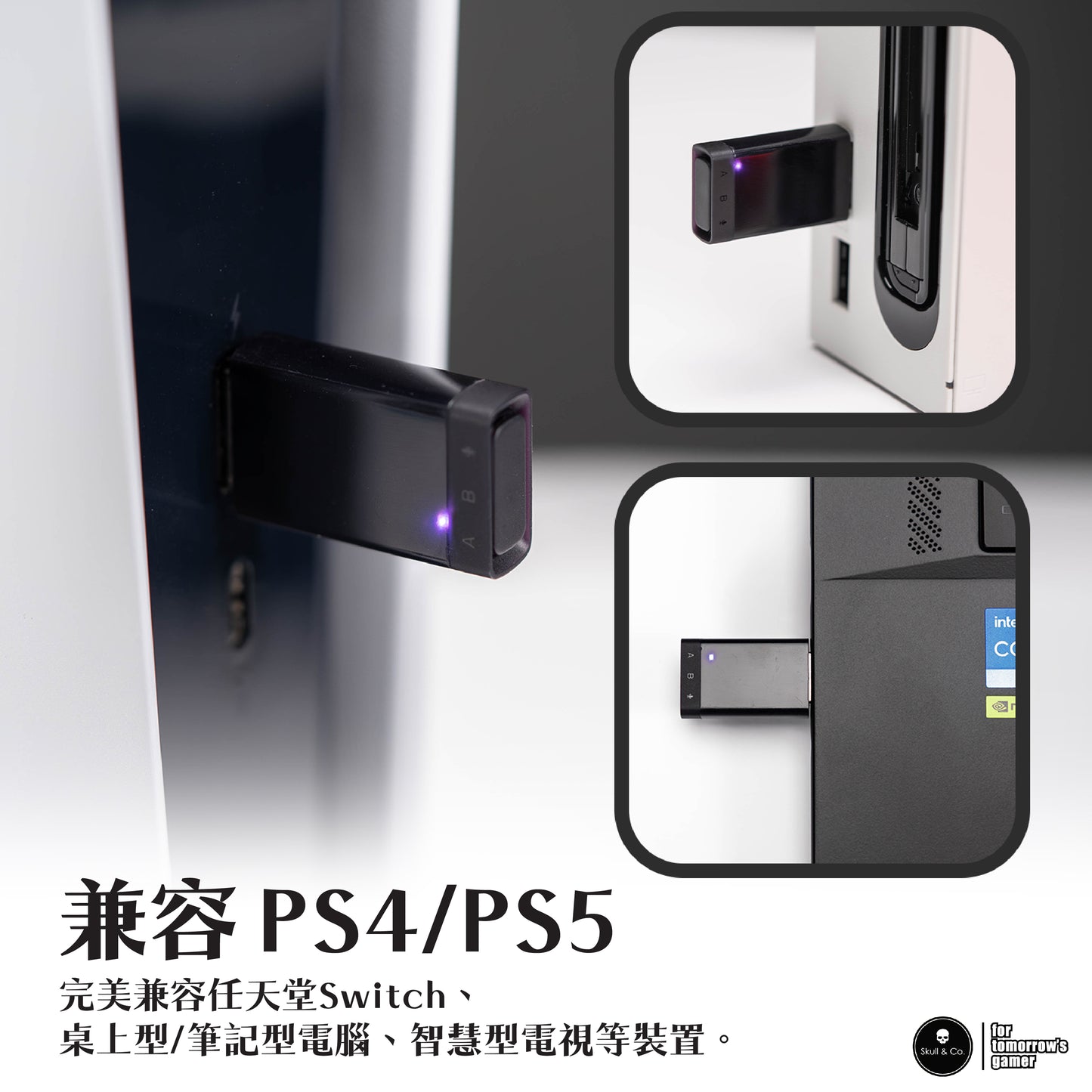
- Compatible with PS5 / PS4 / Nintendo Switch (NS / NS2) / PC / Laptops, etc.
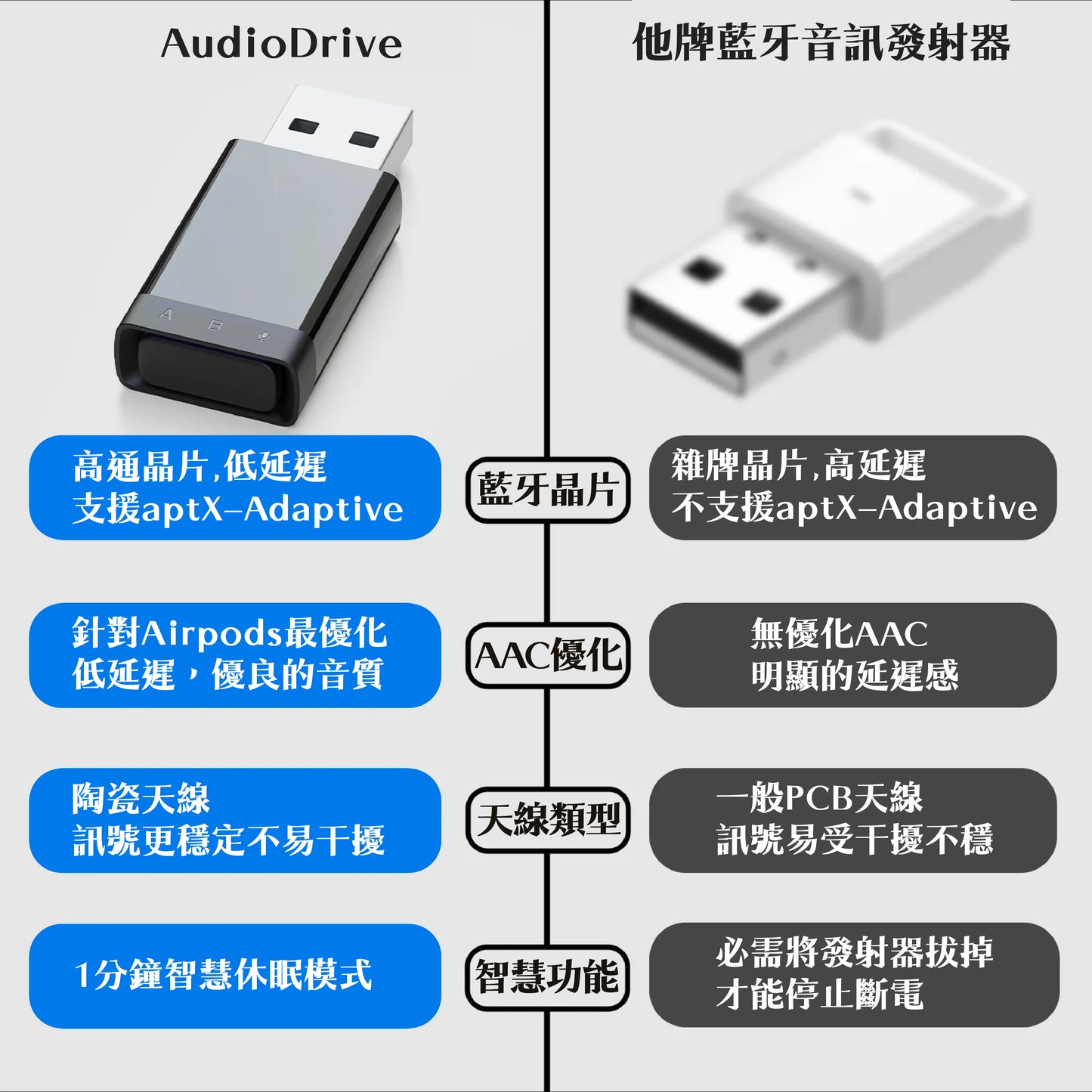
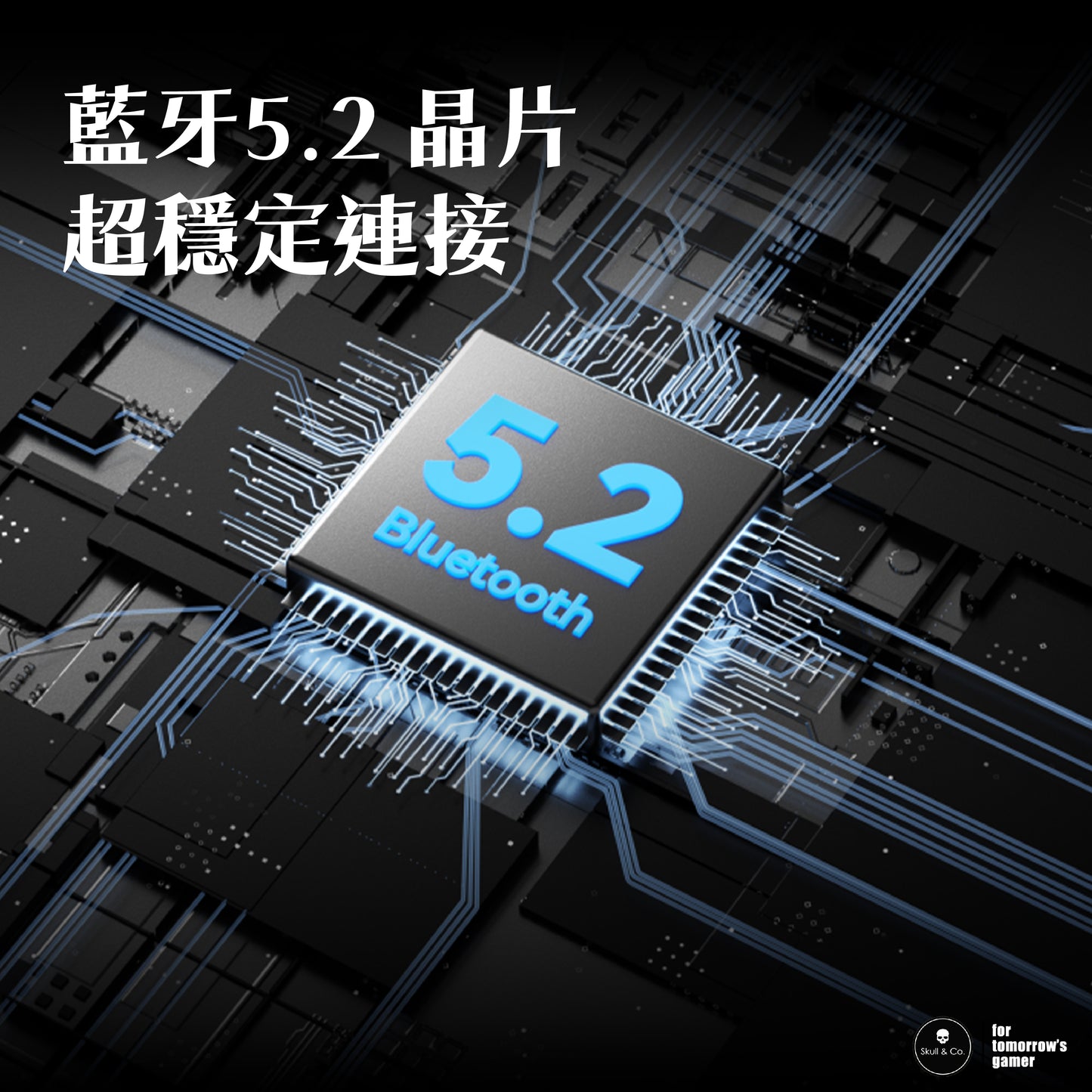
- Bluetooth 5.2 specification-Offers faster transmission efficiency and lower latency than Bluetooth 5.0.
- Louder and clearer-Provides a better experience than Switch's built-in Bluetooth.
- Share the fun-Can connect two sets of Bluetooth headphones simultaneously.
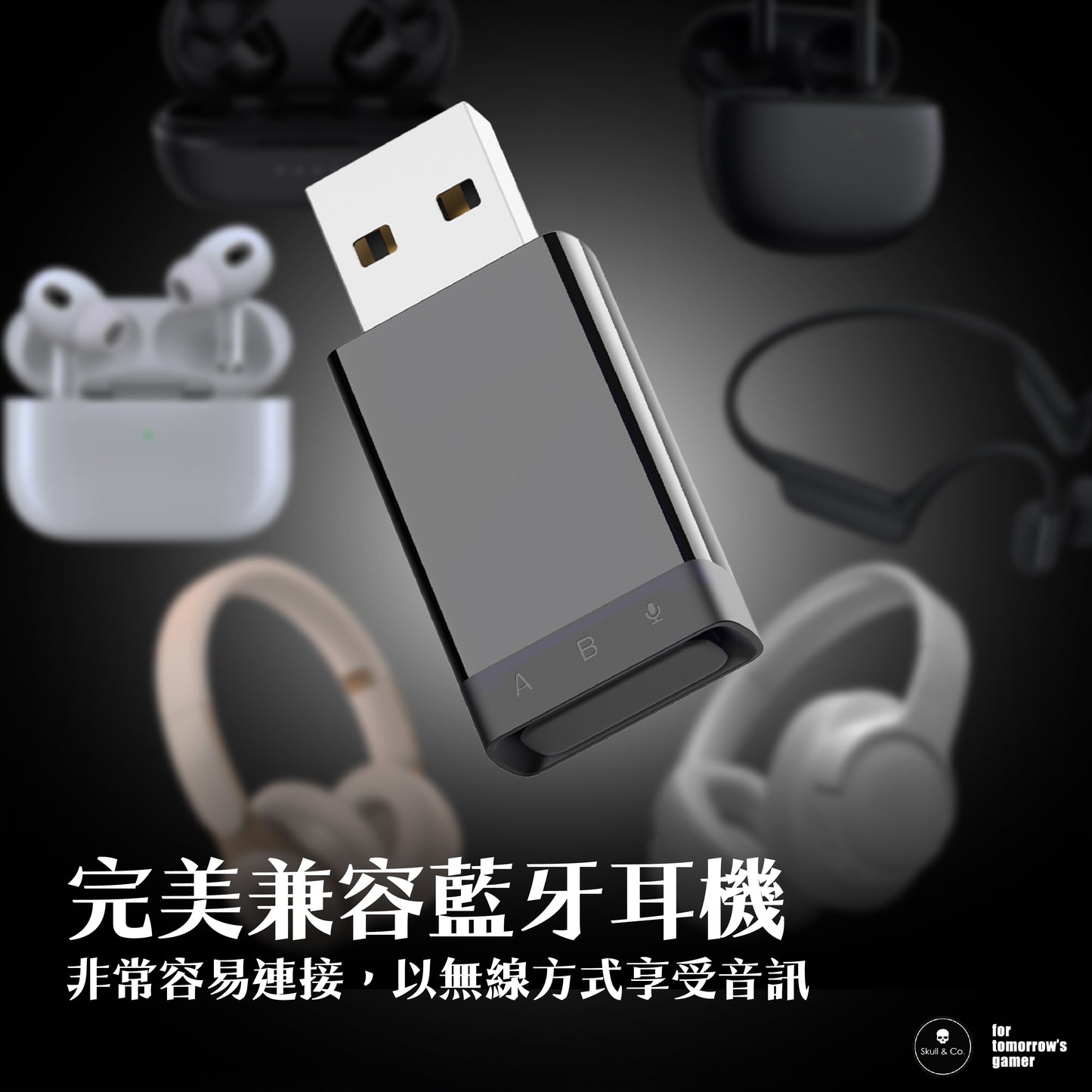
- Compatible with most Bluetooth headphones on the market, optimized for AirPods / AirPods Pro.
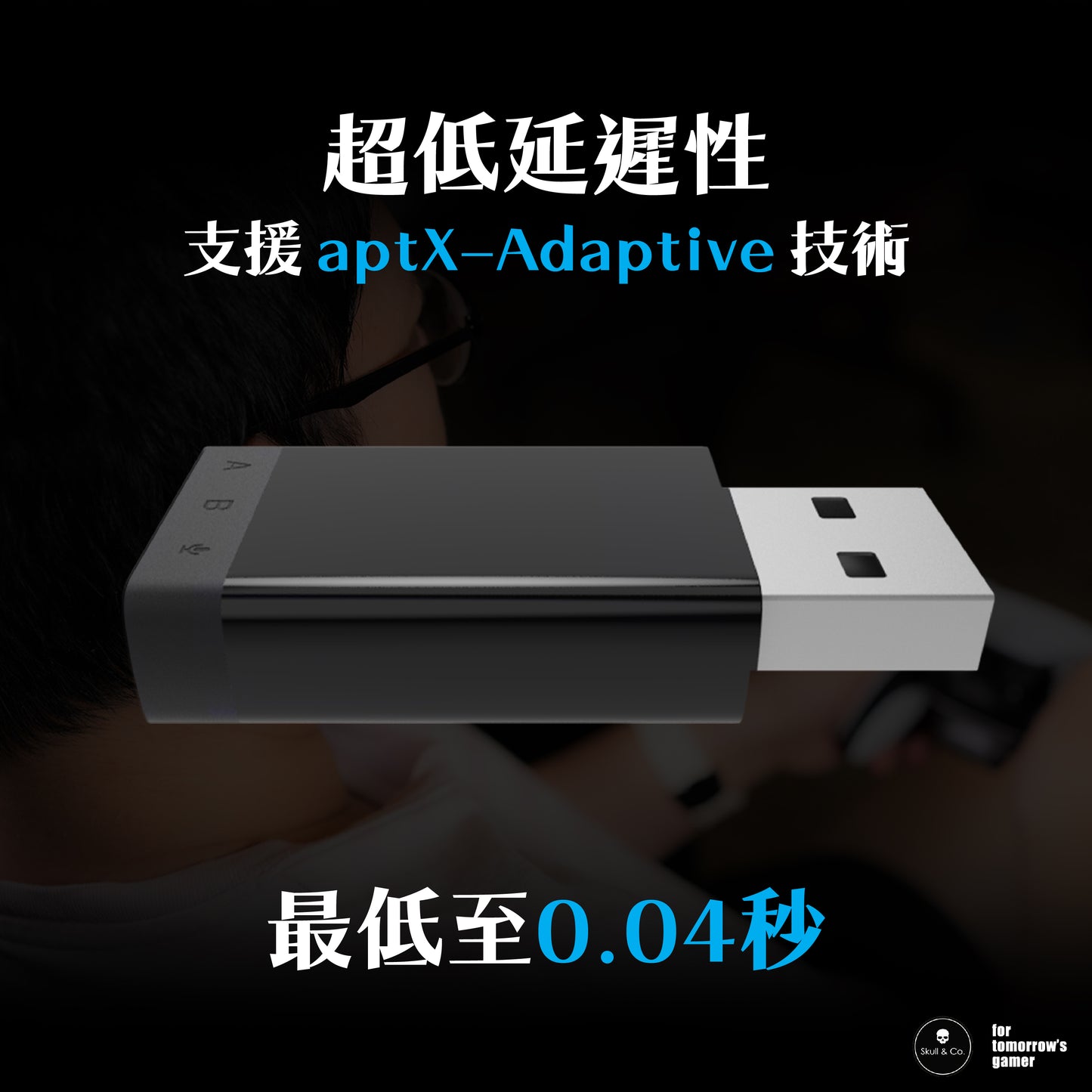
- Supports aptX-Adaptive high-quality audio codec.
Contents
- 1x AudioDrive Bluetooth Audio Receiver Transmitter
- 1x Multi-language user manual
Specifications
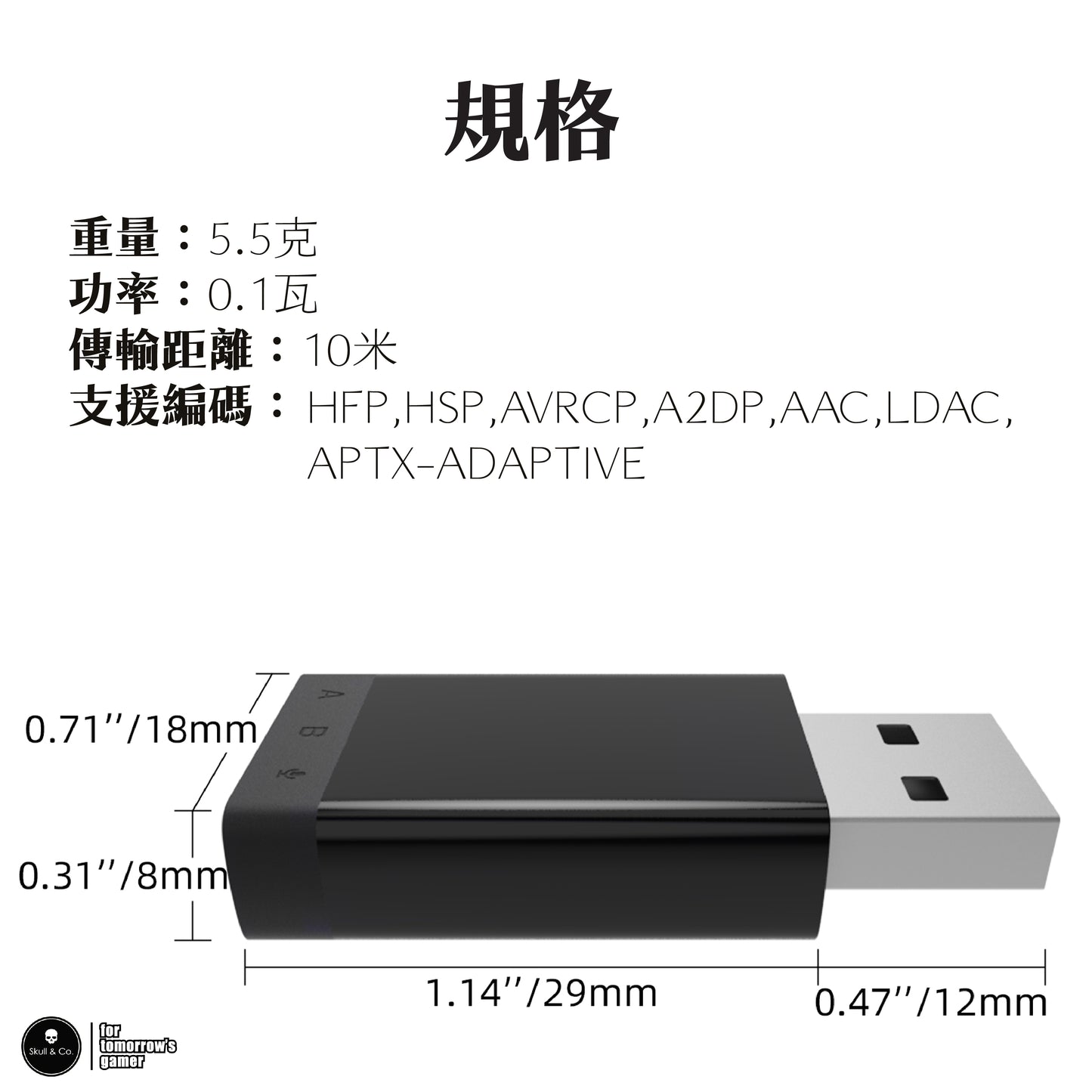
- Dimensions: 29 x 18 x 8mm (12mm including connector)
- Weight: 5.5 grams
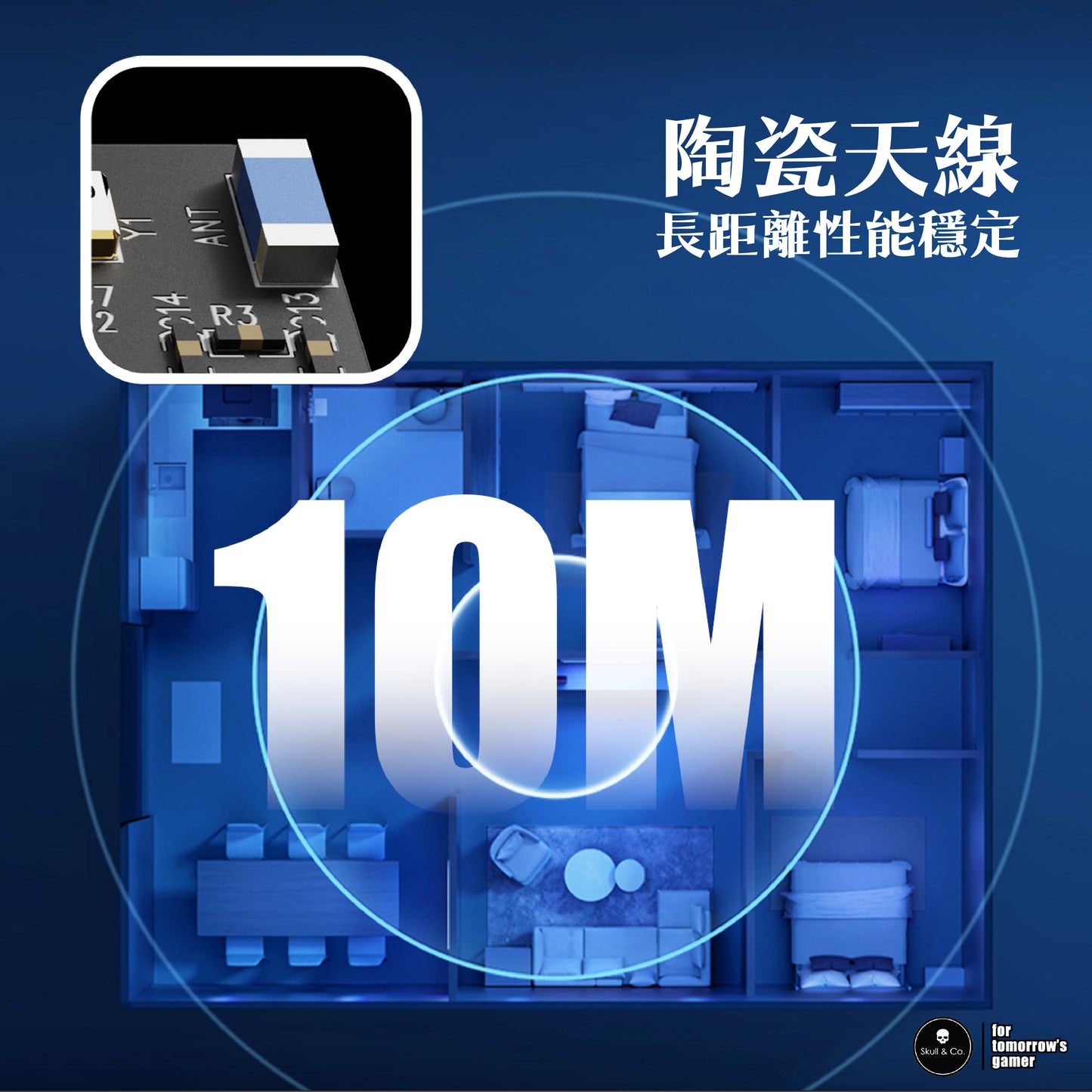
- Bluetooth: 5.2 / Transmission distance: 10 meters (barrier-free space)
- Power: 0.1W
- Supported codecs: HFP, HSP, A2DP, AVRCP, AAC, APTX, LDAC, APTX-ADAPTIVE
- NCC Type Approval: CCAH24LPA730T3
- EU RoHS compliant (non-toxic and environmentally friendly standard)
(Unauthorized use will be prosecuted according to law)
⚠️ Please note before purchasing
- The Qualcomm Bluetooth chip will automatically select the optimal codec for connection based on current environmental factors (signal strength, stability, transmission rate, latency), so it cannot be guaranteed to connect to a specific codec.
- Not compatible with wireless (2.4G) headphones, and headphones must support Bluetooth connection.
Only for connecting Bluetooth audio devices.
Compatible Products
Compatible with the following products
-
■NS2 Multi-functional Portable Dock JUMPGATECan be used with most Bluetooth headphones and speakers.
-
■Multi-functional Portable Dock ONE DOCKCan be used with most Bluetooth headphones and speakers.
-
■PLAYSTATION 5 ConsoleCan be used with most Bluetooth headphones and speakers.
-
■PLAYSTATION 4 ConsoleCan be used with most Bluetooth headphones and speakers.
-
■Desktop Computers and other Smart DevicesCan be used with most Bluetooth headphones and speakers.
FAQs
AudioDriveIs AudioDrive compatible with my Bluetooth headphones?
Yes, AudioDrive is compatible with all Bluetooth headphones.
Can I use AudioDrive in Switch TV mode or with PS4/PS5?
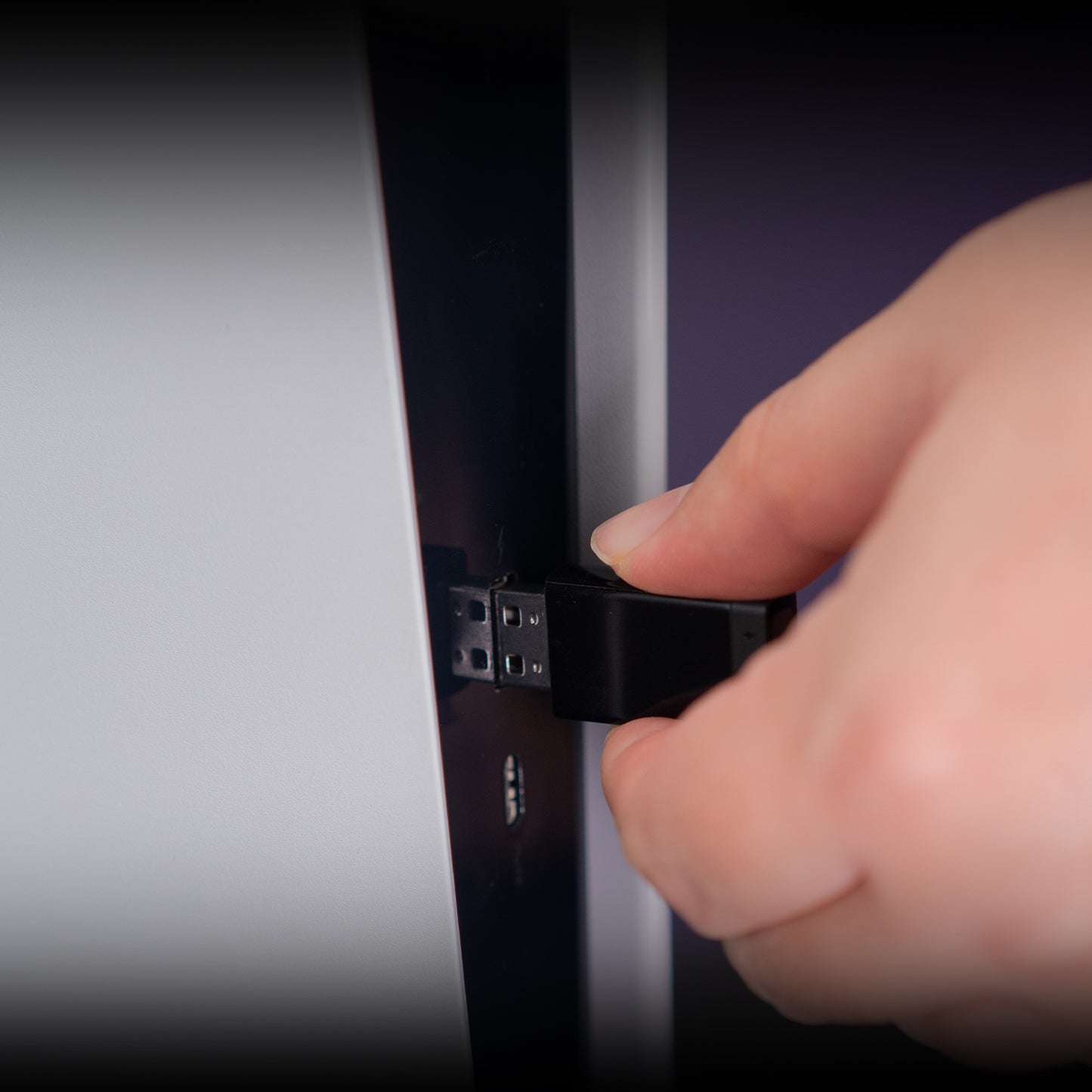
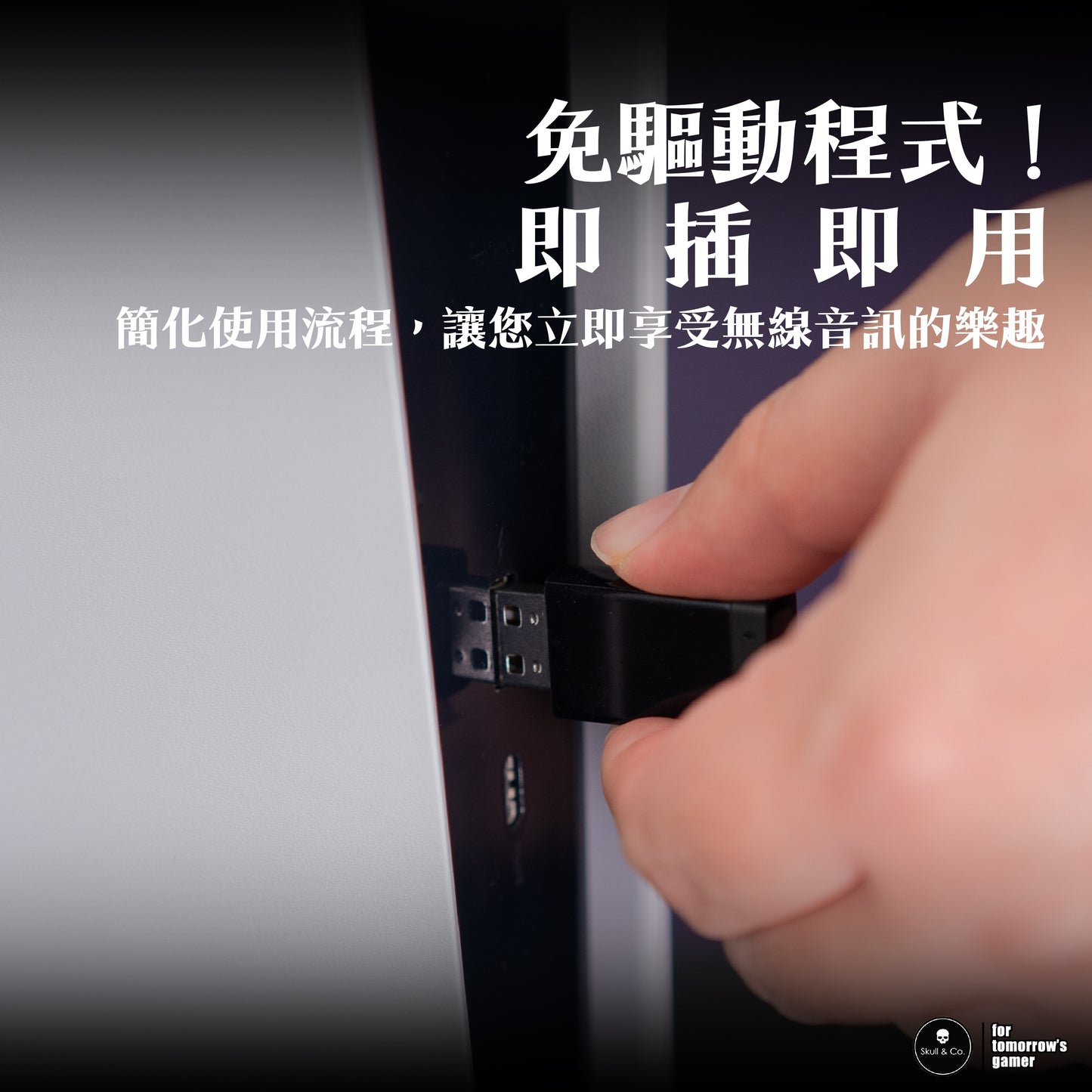
Yes, connect AudioDrive to your Switch dock or PS4/PS5 via the USB-A port.
No sound from AudioDrive after connecting to Bluetooth headphones, and PS5 shows incompatibility?
Normally, the PS5 system will automatically detect and switch to Bluetooth headphone audio output. If it doesn't switch automatically, please go to:
PS5 Settings → Sound → Audio Output → Output Device
Then manually select your Bluetooth headphones.
Can AudioDrive connect to two sets of Bluetooth headphones simultaneously?
Yes, but if only one of the two connected headphones supports Aptx, the output will be SBC for both.
Example: (Headphone A supports Aptx) + (Headphone B does not support Aptx) = SBC output
Does AudioDrive have voice chat functionality?
Yes, if your Bluetooth headphones have a microphone, double-press the button on the transmitter while connected to the headphones to turn the microphone on/off.
However, PS4 and some older Switch games only support voice chat through a 3.5mm headphone jack. In such cases, a separate 3.5mm microphone is required.
AudioDrive powers off when no headphones are connected, what can I do?
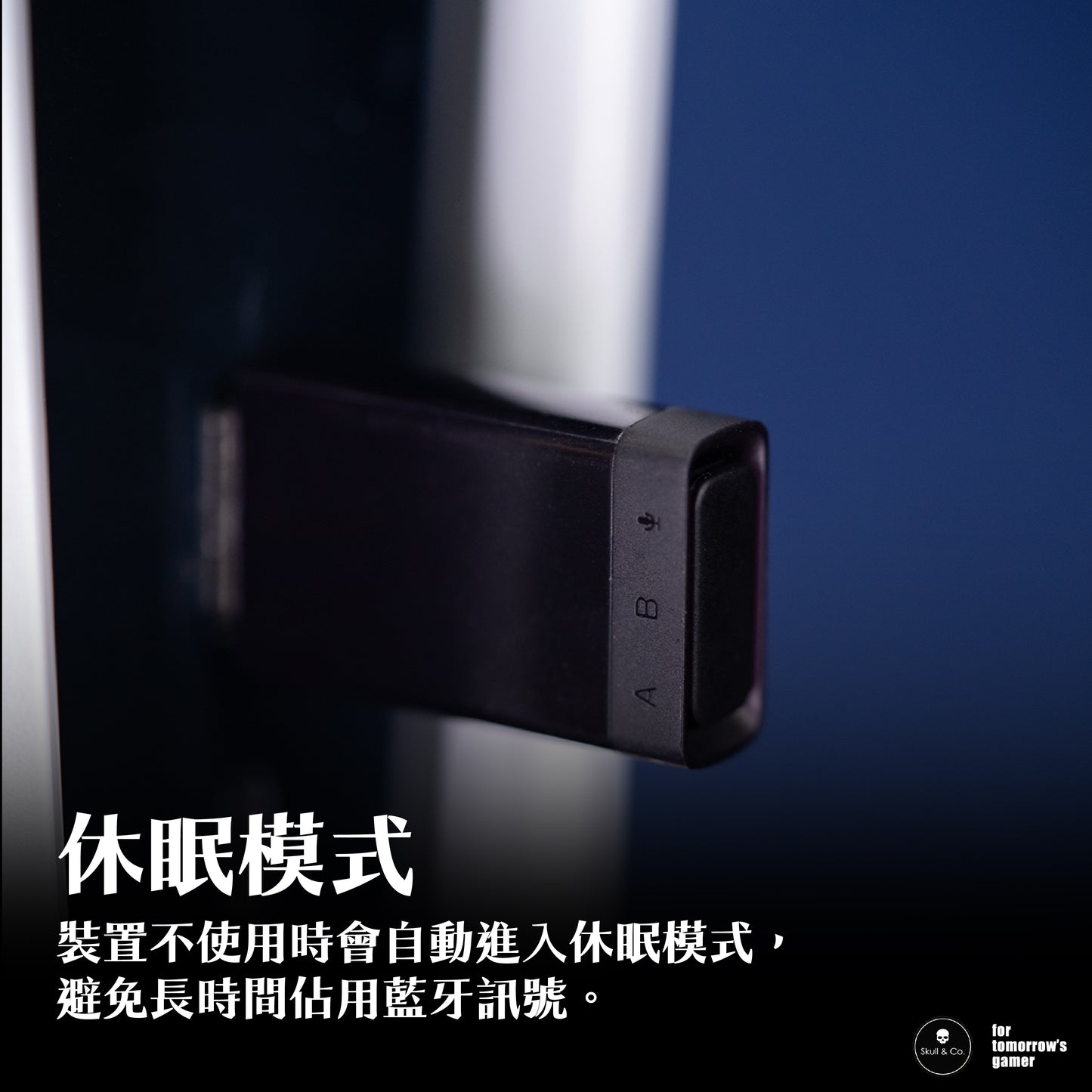
AudioDrive has an automatic sleep function; it will go to sleep if it doesn't detect headphones for more than one minute. Please refer to the "Reconnection" section in the manual, and single-click any button to wake it up.
I can't pair AudioDrive with Apple AirPods Pro, what should I do?
Please follow these steps:
- Insert AudioDrive into your console, then long-press button A or B to enter pairing mode.
- Place your AirPods/Pro in the charging case and open the lid.
- Press and hold the setup button on the back of the charging case (for 3rd gen and earlier) / tap the indicator light twice (for 4th gen) until the status indicator light flashes white.
AirPods Max: Press and hold the noise control button for about 5 seconds, or until the status indicator light flashes white. - Please follow the Chinese instruction manual included with AudioDrive to complete the pairing.
